What is sideloading an Outlook add-in?
This is the process of installing a modern web-based add-in directly from an add-in manifest file rather than from the store (AppSource). Sideloading is a common practice for developers during the development and testing of their add-in. It can also be used for Enterprise applications which are developed in-house and therefore don’t get acquired/deployed through the store.
How sideloading used to work (prior to Sep 2023)
The approach to sideloading Outlook add-ins has historically been through the same UX flow as adding an add-in from the store. This involved clicking a ribbon button that said Store or later was renamed Get Add-ins

From here you would click on My add-ins, scroll down to Custom Addins | Add a custom add-in and upload your manifest file.

How the UX changed (Sep 2023)
If you attempt to go through a similar approach under the new UX experience by select the All Apps ribbon button and selecting Add apps (shown below in Outlook for Windows and Outlook for Web)
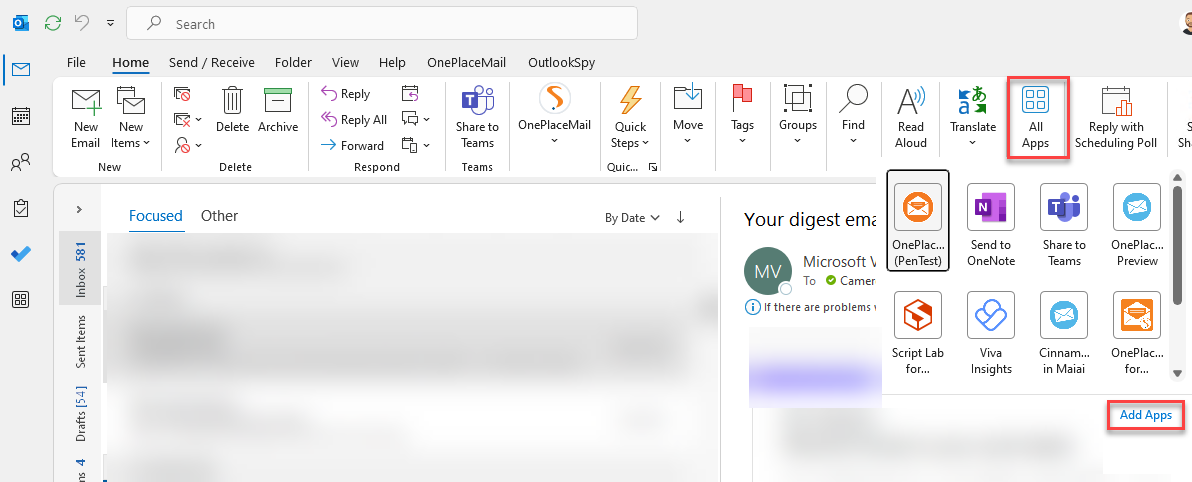

Clicking on Add apps brings up the store

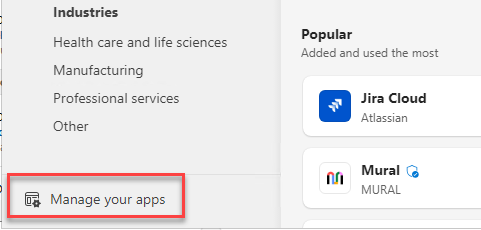
But unlike the old interface there is no option add a new add-in by uploading a manifest. Selecting the Manage your apps link in the bottom left brings up this screen which again won’t let you upload a manifest.

How sideloading now works (as of Sep 2023)
Ok, so now we are stuck trying to accomplish this the way we used to. Here’s the new way to sideload that manifest to get your add-in deployed.
Outlook for Windows
Select File | Info | Manage Add-ins
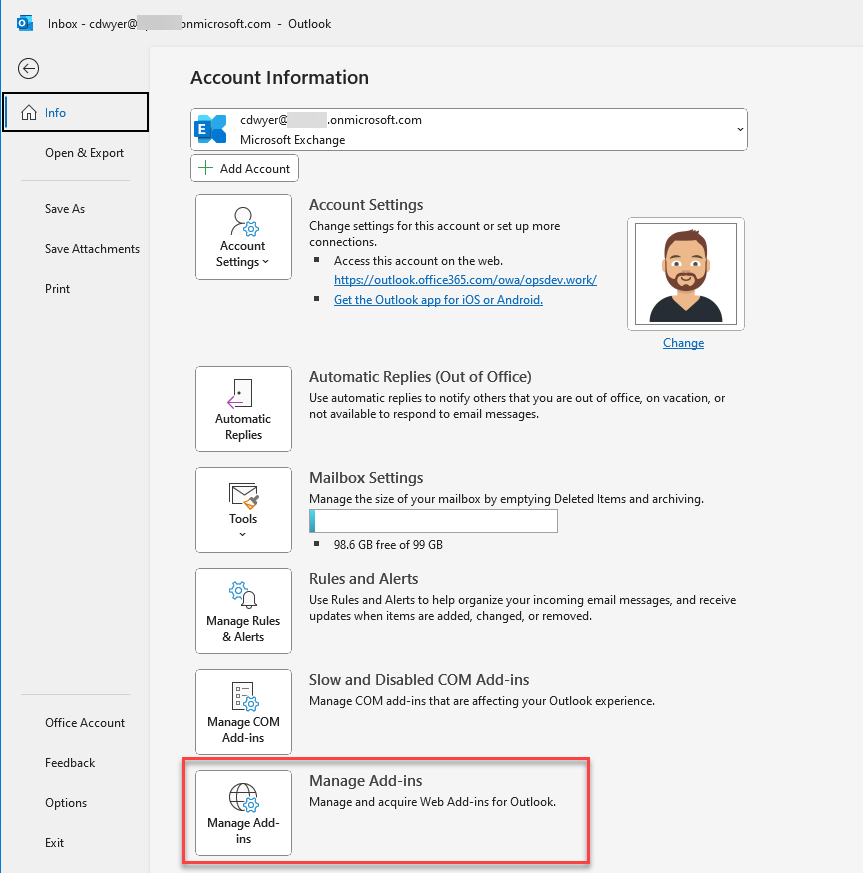
This will open a web browser and launch you into your Outlook for Web and display the old UX for managing add-ins.

From here you can scroll down and select Custom Addins | Add a custom add-in | Add from File… and then upload your manifest.

Outlook for Web
If you are trying to upload your manifest direct from Outlook for Web (and you don’t have Outlook for Desktop installed) then things get a little more cryptic. I haven’t found anything in the UI that you can click on. As per an update to the Microsoft documentation on developing Outlook add-ins, you need to manually navigate to this URL to bring up the old dialog.
https://aka.ms/olksideload
This will bring up the same dialog that Windows for Desktop launches from the Manage Add-ins technique.

I find the new UX a bit confusing for Outlook for Desktop since the backstage approach and the Ribbon button take you to different dialogs to manage your add-ins. Even more confusing is Outlook for Web where you just have to have read the documentation and know that there’s a secret URL that you have to open! At the time of writing this article the changes are very new so I expect we will see more changes and hopefully sideloading becomes easier to discover.
This has been raised as an issue but for the moment it seems Microsoft is suggesting that manually opening the URL is the best approach. Microsoft also mentions that you may experience a 4 hour delay due to changing before your add-in appears after uploading the manifest.
Hope this helps.
 Cameron Dwyer