Now that New Outlook for Windows has gone into General Availability many organisations will be looking at how they will evaluate and control the deployment/migration of users from Classic Outlook to New Outlook. Some new resources have been made available to help here:
Plan your migration to new Outlook for Windows
Microsoft has provided several mechanisms to assist organisations with controlling the availability and deployment of New Outlook for Windows including:
- Prevent users from switching to new Outlook
- Block new Outlook preinstall on Windows
- Block new Outlook installation as part of Mail and Calendar deprecation
- Prevent users from acquiring new Outlook from Microsoft Store
- Block Mailbox Access on new Outlook
Walk-through of hiding the “Try New Outlook” toggle
Open the M365 App Admin Center https://config.office.com/ (note this is different to the M365 Admin Center!)
Select Customization | Policy Management | Create Policy and give your policy a meaningful name

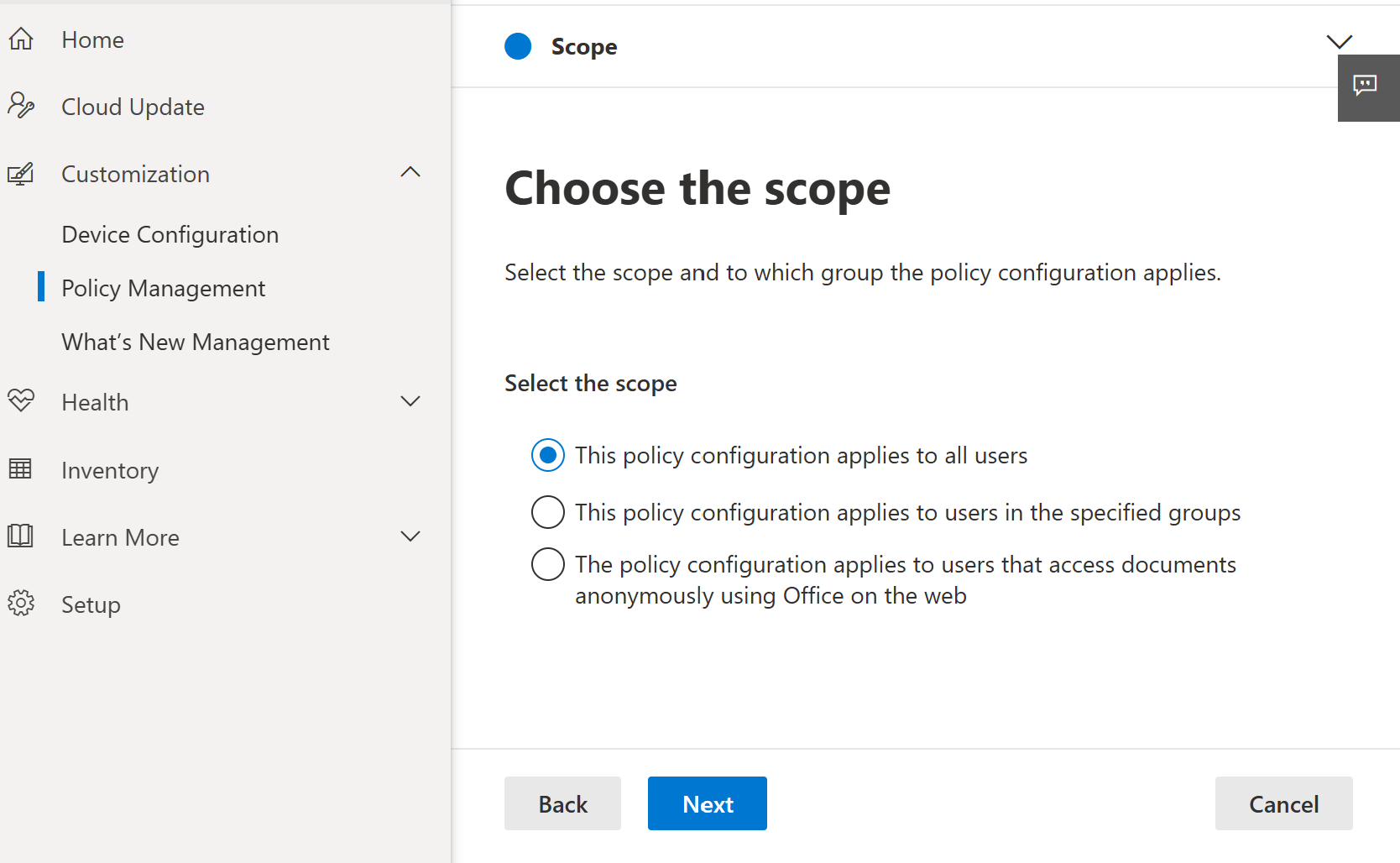
Choose a scope of users that the policy applies to
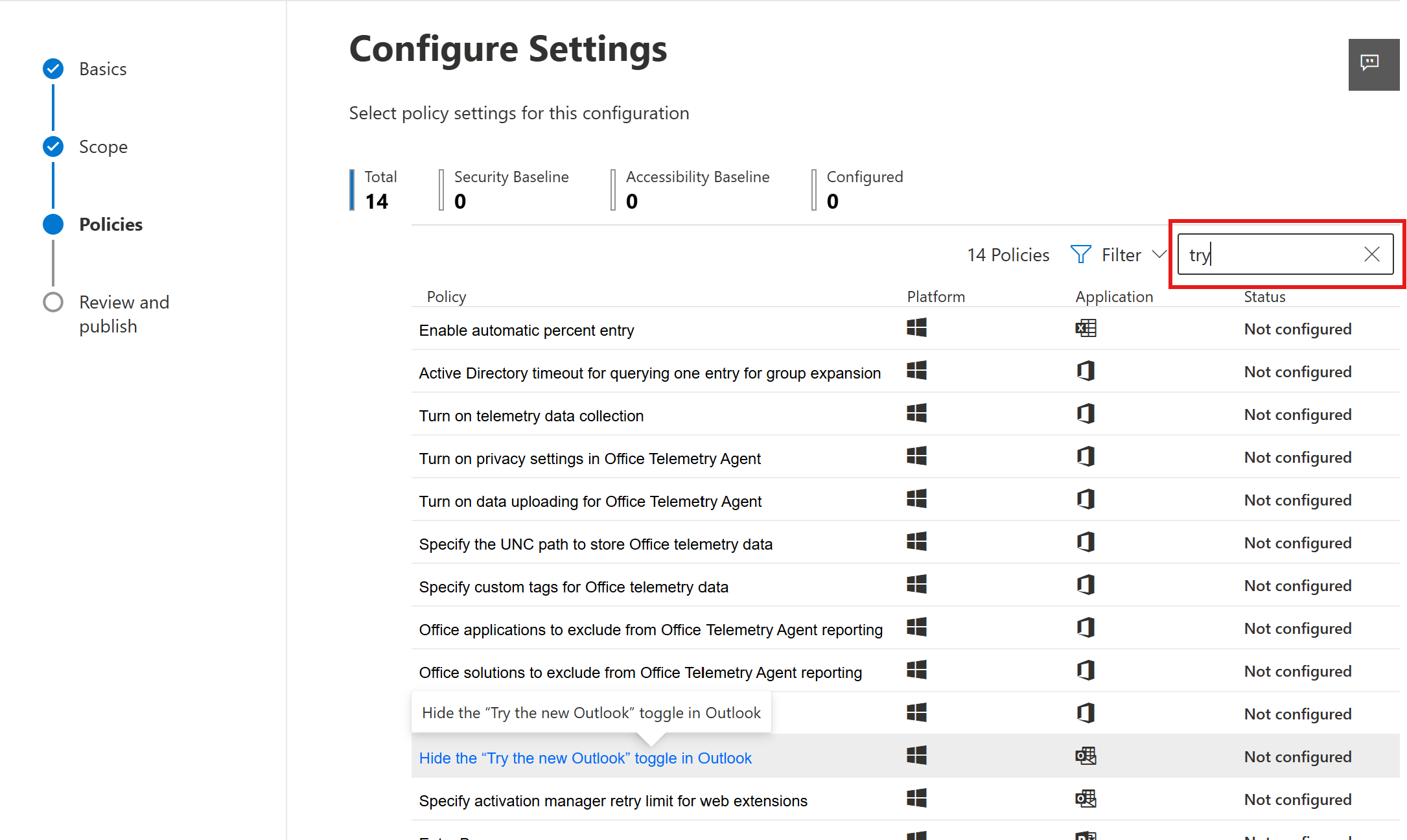
Select the Hide the “Try the new Outlook” toggle in Outlook policy. Hint: That search box in the top right corner is your friend and will let you find this policy quickly!
Choose Enabled

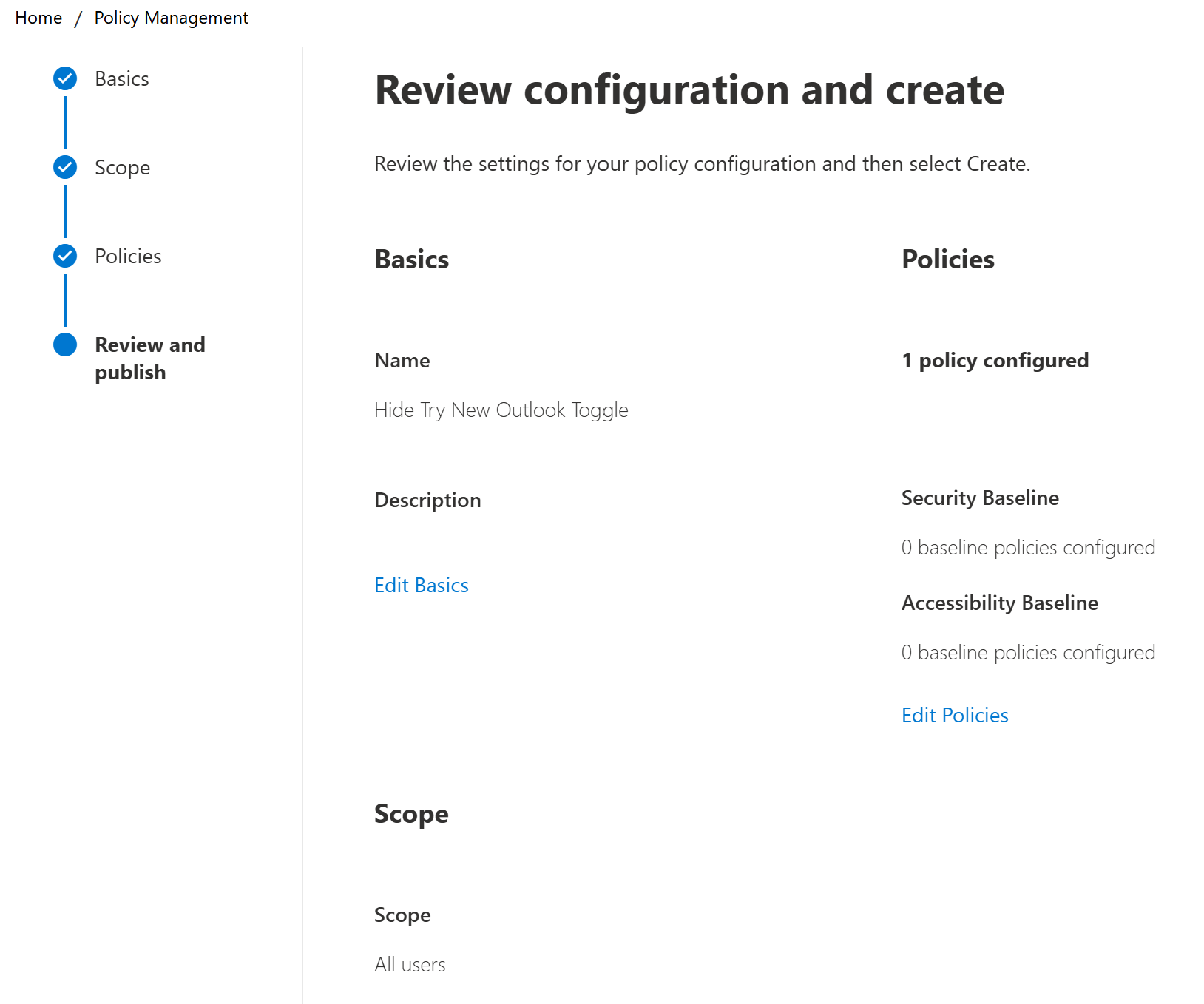
Review and publish and that’s it.
This walk-through is just one of the options available to you for controlling the deployment of New Outlook. Refer to this Microsoft article for other options https://learn.microsoft.com/en-us/microsoft-365-apps/outlook/get-started/control-install?WT.mc_id=M365-MVP-5002900
 Cameron Dwyer
Well, short term, use iobit uninstaller to get rid of outlook then click on mail.
I really wouldn’t mind the new outlook, but quite simply it’s not as good as the feature it’s replacing. Denied access every time the computer wakes etc etc
LikeLiked by 1 person
Thanks for leaving the feedback on your experience
LikeLike