Most OpenClaw guides assume you’ll pay for OpenAI or Anthropic. But if you already have Azure credits, you can run OpenClaw for effectively free — if you know how to get Azure Foundry models working reliably. I spent hours fighting with it so you don’t have to.
OpenClaw has been getting a lot of attention lately, and for good reason — it’s a seriously capable AI agent platform. But like any AI tool, it’s only as useful as the models you connect it to. Out of the box, you need to point it at an LLM provider, and that typically means signing up for yet another subscription and handing over your credit card to OpenAI, Anthropic, or similar.
If you’re coming from a Microsoft background though, there’s a good chance you already have something that can do the job: an Azure subscription with monthly credits sitting there, often underutilised. In this post I’ll walk through how I wired up my OpenClaw instances (I’m running one on Windows and one on Ubuntu) to Azure AI Foundry deployed models using those existing credits. No new subscriptions required.
Fair warning: this took more trial and error than I expected, so I’m sharing exactly what worked — including the config that finally clicked — so you don’t have to go through the same pain.
The Stack: What We’re Building
The final setup looks like this:
OpenClaw → LiteLLM → Azure AI Foundry → LLM models
I’ll explain why LiteLLM is in the middle a bit further down. First, let’s get the Azure side set up.
Step 1: Create a Microsoft Foundry Resource in Azure
Head into the Azure portal and search for Microsoft Foundry. You’re looking for this:
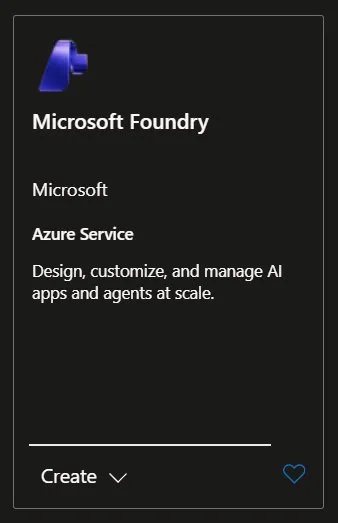
Create a new Foundry resource in your subscription. The setup is fairly standard — pick your subscription, resource group, region, and give it a name. I called mine proj-openclaw which made it easy to identify.
Once created, open the Azure AI Foundry portal from within the resource.
Step 2: Deploy Your Models
Inside the Foundry portal, navigate to Models + endpoints and click Deploy model. This is where you choose which LLMs you want to make available.
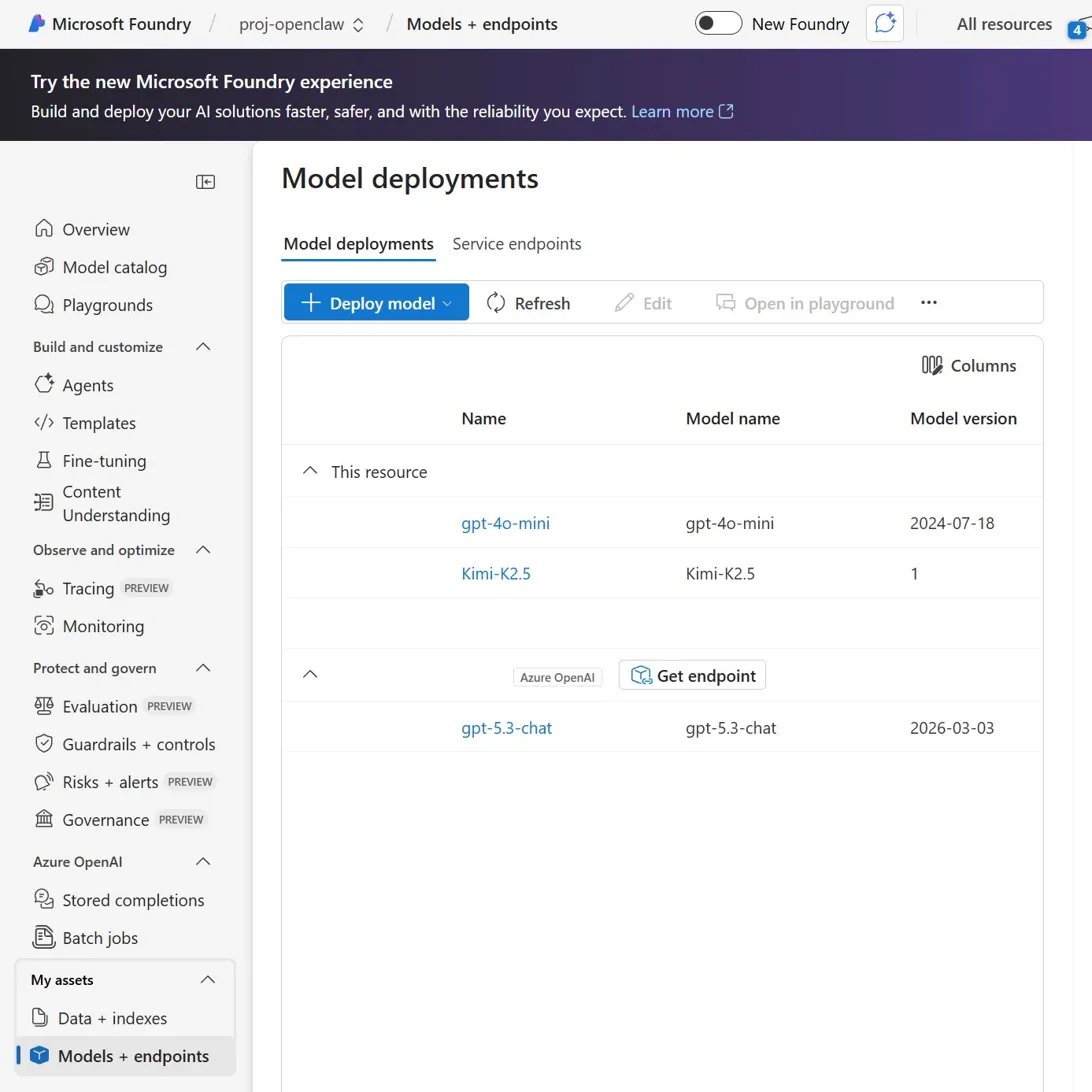
I deployed three models, each suited to different tasks:
gpt-4o-mini — The super cheap and not very powerful option! Cheap to get things up and running and may be ok for very simple well-defined tasks. Don’t expect it to handle anything complex and also don’t use it where it could be exposed to prompt injection as a model this simple would be very vulnerable.
Kimi-K2.5 — I’ve found it works well for web search tasks and straightforward reasoning, like fetching and summarising news. It’s a nice balance between cost and capability.
gpt-5.3-chat — Noticeably more capable for complex tasks and reasoning, but it comes with a step up in price to match.
Once each model is deployed you can click into it to find the endpoint URL and API key — you’ll need both shortly.
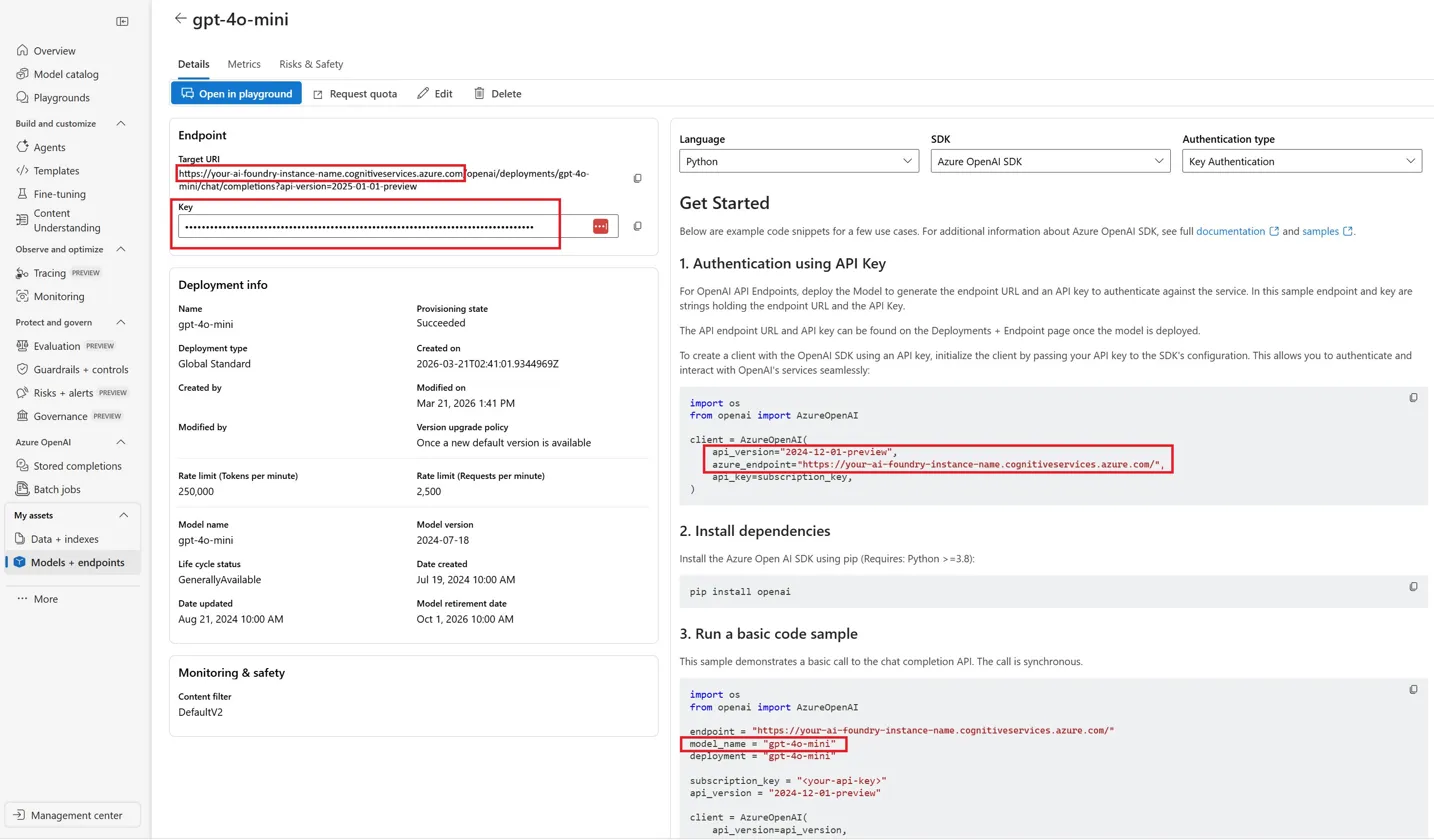
The key properties you’ll be pulling from this screen are highlighted in the screenshot above: the Target URI (your base endpoint URL) and the Key.
The Direct Connection Problem
At this point you might think you can just plug these Azure Foundry endpoints straight into OpenClaw’s config and be done. I thought the same thing.
I tried. It didn’t work — at least not reliably for me.
What I ran into was a mix of authentication errors, “resource not available” responses, and occasionally responses that OpenClaw simply couldn’t interpret. The tool usage piece was particularly problematic; even when basic chat seemed to be working, function/tool calls would fall over.
I saw articles claiming to have got it working directly, so maybe it’s model-specific, maybe there’s a config trick I was missing — honestly I’m not sure. What I can tell you is that I had much more success taking a different approach.
Step 3: Enter LiteLLM
LiteLLM is an open-source proxy that sits between your application and LLM providers. It speaks the OpenAI API format on one side, and handles translating that into whatever each provider actually expects on the other side. That translation layer is exactly what makes the difference here — it irons out the compatibility issues between OpenClaw and Azure Foundry’s endpoints.
The other thing that made this appealing is that LiteLLM is available for both Windows and Linux, and the config file format is identical on both platforms. That meant I could use the same litellm_config.yaml on my Windows OpenClaw instance and my Ubuntu one without any changes.
Step 4: LiteLLM Config
Here’s the litellm_config.yaml that worked for me:
model_list: - model_name: gpt-4o-mini litellm_params: model: azure/gpt-4o-mini base_model: gpt-4o-mini api_base: https://your-ai-foundry-instance-name.cognitiveservices.azure.com/ api_key: <your azure foundry API key> api_version: "2024-10-21" drop_params: true - model_name: Kimi-K2.5 litellm_params: model: azure/Kimi-K2.5 base_model: Kimi-K2.5 api_base: https://your-ai-foundry-instance-name.cognitiveservices.azure.com/ api_key: <your azure foundry API key> api_version: "2025-01-01-preview" drop_params: false - model_name: gpt-5.3-chat litellm_params: model: azure/gpt-5.3-chat base_model: gpt-5.3-chat api_base: https://your-ai-foundry-instance-name.cognitiveservices.azure.com/ api_key: <your azure foundry API key> api_version: "2024-12-01-preview" drop_params: falsegeneral_settings: master_key: "<your LiteLLM master key>" # Any string you choose
A few things worth calling out:
api_base — This is the base URL of your Foundry resource (without any path). You can find it on the model detail page in the Azure portal.
api_version — Each model you deploy has a different API version which you can get from the model deployment in Azure. Getting this wrong (or not specifying it) was one of the causes of my earlier failures.
drop_params — This is the subtle-but-important one. gpt-4o-mini needs drop_params: true, while Kimi-K2.5 and gpt-5.3-chat need it set to false. This controls whether LiteLLM strips unsupported parameters out of requests before sending them to Azure. Getting this wrong will cause failures that can be hard to diagnose.
master_key — This is the key you’ll configure OpenClaw with. It can be any string you choose — just make sure it matches on both sides.
Step 5: OpenClaw Config
On the OpenClaw side, here are the relevant config sections to add to your openclaw.json. This tells OpenClaw about LiteLLM as a provider and registers the three models:
{ "agents": { "defaults": { "model": { "primary": "litellm/gpt-5.3-chat", "fallbacks": [ "litellm/gpt-4o-mini" ] }, "models": { "litellm/gpt-4o-mini": { "alias": "GPT-4o Mini (Azure)" }, "litellm/Kimi-K2.5": { "alias": "Kimi-K2.5 (Azure)" }, "litellm/gpt-5.3-chat": { "alias": "gpt-5.3-chat (Azure)" } } } }, "models": { "mode": "merge", "providers": { "litellm": { "baseUrl": "http://localhost:4000/v1", "apiKey": "<your LiteLLM master key - must match litellm_config.yaml>", "api": "openai-completions", "models": [ { "id": "gpt-4o-mini", "name": "GPT-4o Mini (Azure)", "reasoning": false, "input": ["text", "image"], "contextWindow": 128000, "maxTokens": 16384 }, { "id": "gpt-5.3-chat", "name": "gpt-5.3-chat (Azure)", "reasoning": true, "input": ["text", "image"], "contextWindow": 400000, "maxTokens": 16384 }, { "id": "Kimi-K2.5", "name": "Kimi-K2.5 (Azure)", "reasoning": false, "input": ["text", "image"], "contextWindow": 256000, "maxTokens": 32768 } ] } } }, "auth": { "profiles": { "litellm:default": { "provider": "litellm", "mode": "api_key" } } }, "plugins": { "entries": { "litellm": { "enabled": true } } }}
The key points here:
baseUrl: "http://localhost:4000/v1"— LiteLLM runs locally on port 4000 by default. If you’ve changed that, update accordingly.apiKey— Must match themaster_keyin yourlitellm_config.yaml.reasoning: trueongpt-5.3-chat— this tells OpenClaw the model supports extended reasoning, which enables features that rely on it.- The
fallbacksarray in the agent defaults is a nice touch — if the primary model fails or hits a rate limit, OpenClaw will automatically fall back togpt-4o-mini.
The Result
With LiteLLM running and OpenClaw configured, the whole stack just works. Here’s a screenshot of me chatting with OpenClaw — with gpt-5.3-chat running on Azure — asking it how easy it is to set up OpenClaw with Azure Foundry models:
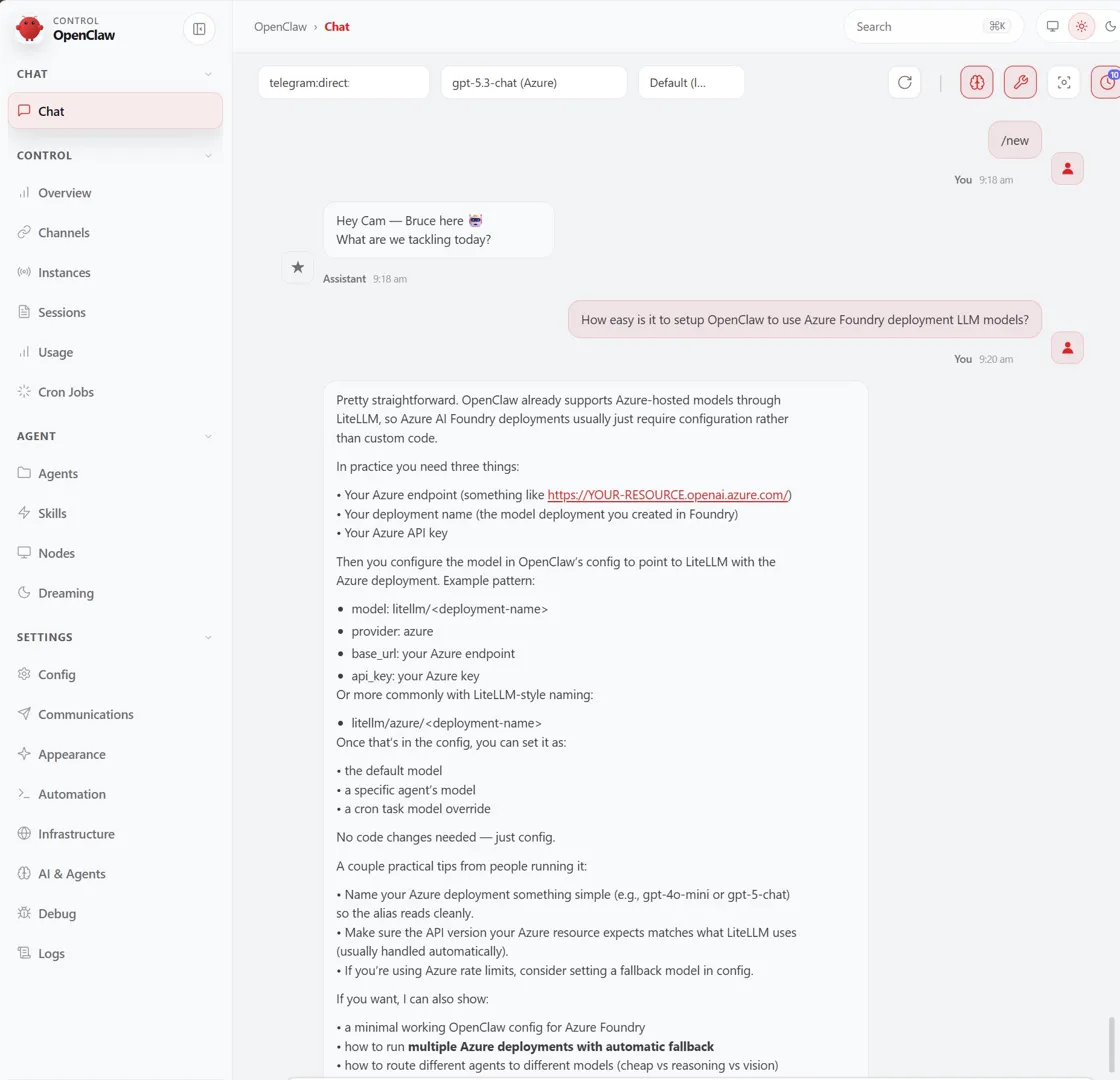
There’s something satisfying about asking an Azure-deployed model to explain its own setup, and getting the right answer back 🙂
So that’s it, if you’ve got an Azure subscription with monthly credits, there’s a good chance you’ve got everything you need to run OpenClaw without paying for a separate LLM subscription. LiteLLM gives you a single local endpoint that OpenClaw talks to, and you can swap models in and out just by editing the YAML config. Adding a new Azure-deployed model is as simple as deploying it in Foundry, adding a new entry to litellm_config.yaml, and registering it in openclaw.json.
Hopefully this saves a few people the trial and error I went through.


Leave a Reply