I’ve been running Microsoft Edge (Chromium) as my primary web browser for a long time. All of a sudden it has become painfully slow to respond.
- Simple webpages just get stuck trying to load (the spinning in the tab header stops spinning)
- It takes SECONDS for keystrokes to appear on screen
- Scrolling is laggy
I tracked the issue down to the profile sync feature in Edge. Simply disabling profile sync INSTANTLY fixed the issue for me and gave me my sanity back, didn’t even need to restart Edge – it was like running on a different machine.
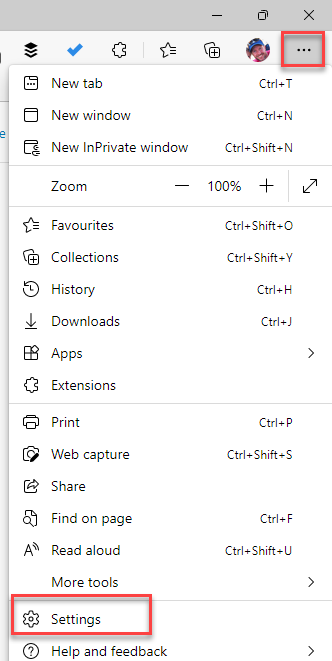
Simple go into Settings
Under the Profiles area click Turn off sync

Hope this returns your browsing to full speed like it did for me.
 Cameron Dwyer
Thank you so much! This fix made my day.
LikeLiked by 1 person
Glad it helped – I only discovered it 30mins ago! Im still on a high from finally fixing it, was driving me crazy.
LikeLike
Thank you very much for this fix!!!!!!!!!!!!!!!!! The slow response from Edge was making it useless
LikeLiked by 1 person
Glad it worked for you 🙂
LikeLike
Wait, so the solution is to turn off a very important feature to chrome, or any browser for that matter? Hardly a solution I’m afraid, but merely a bandaid. Hopefully we can find an actual solution to this very annoying problem.
LikeLike
Where you show “turn off sync” my settings shows “sign out.” I’m really tired of Edge wasting my time. I wish your solution was valid for me.
LikeLike
Awesome, that solved a long-time problem that I had with the browser freezing randomly on me on some tabs. I didn’t turn off sync altogether but just some parts of it like apps, open tabs and extensions. I don’t need it syncing them all (just passwords, settings, form inputs, etc).
LikeLiked by 1 person
Thanks for leaving your comment Bruce – good to know this still improve the performance – well it would be better if it just worked! Thanks.
LikeLike
I dont have ” personal” in profile, could this be elsewhere in my version ?
LikeLike